How to Set Up Notification Recipients
Decide who receives the weekly Monday email digest, and which categories of upcoming work each recipient should hear about.
WHAT'S IN THE WEEKLY DIGEST
Every Monday at 00:00 UTC, Sealogical sends each recipient an email summarising the items needing attention on their vessel(s) within the next 90 days. The seven categories you can subscribe to are:
- Crew Certificates — crew certificates expiring soon
- Vessel Certificates — vessel certificates up for renewal
- Technical Jobs — scheduled jobs with upcoming deadlines
- Inventory Items — inventory items scheduled for inspection
- Vessel Movements — recent noon-position log entries
- Crew Doc Verification — outstanding crew document verification
- Hours of Rest — Hours of Rest submission status
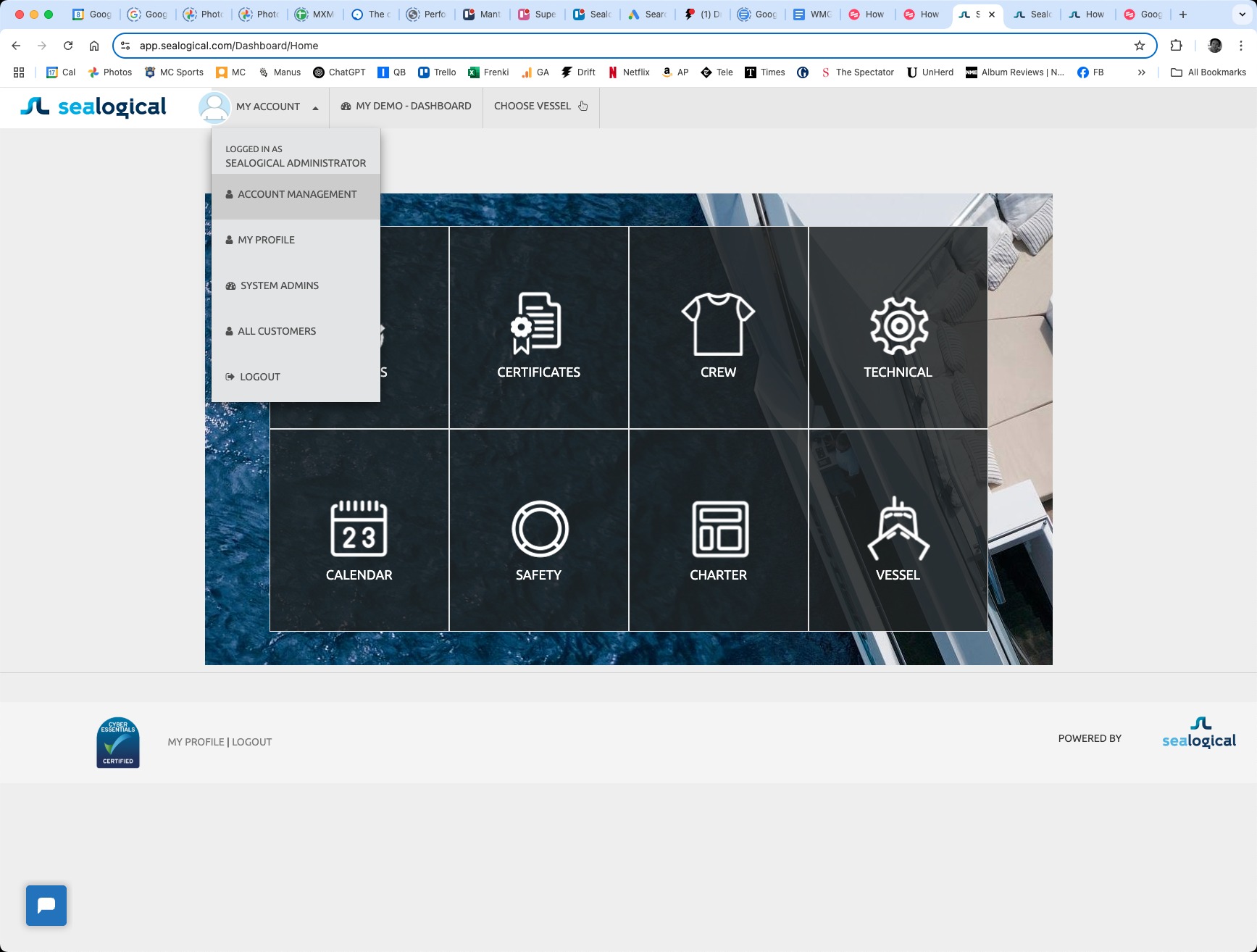
Step 1: Open Account Management
Sign in as an Account Admin, click MY ACCOUNT in the top navigation, and choose Account Management from the dropdown.
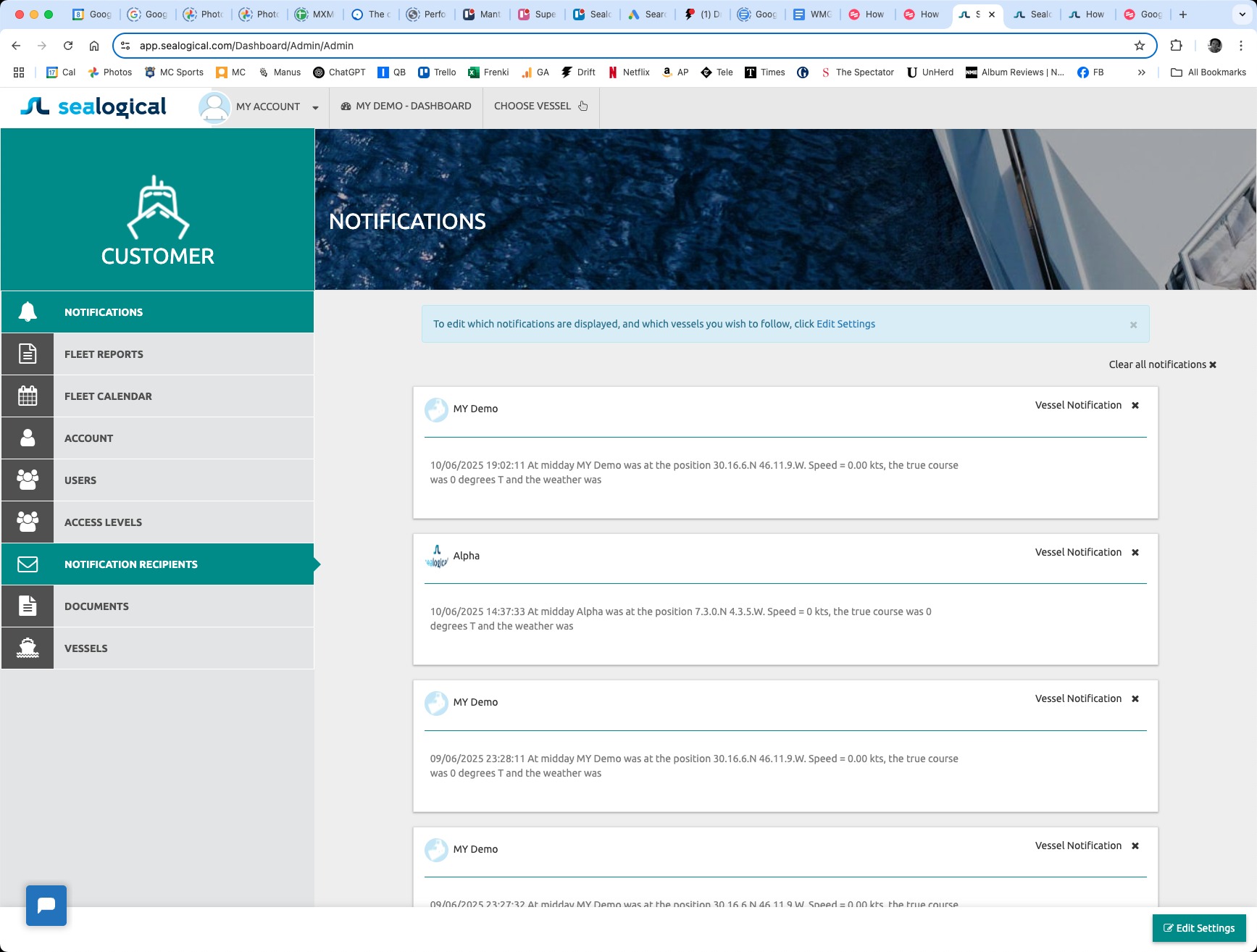
Step 2: Open the Notification Recipients tab
In the Customer sidebar on the left, click NOTIFICATION RECIPIENTS. It sits just below Access Levels.
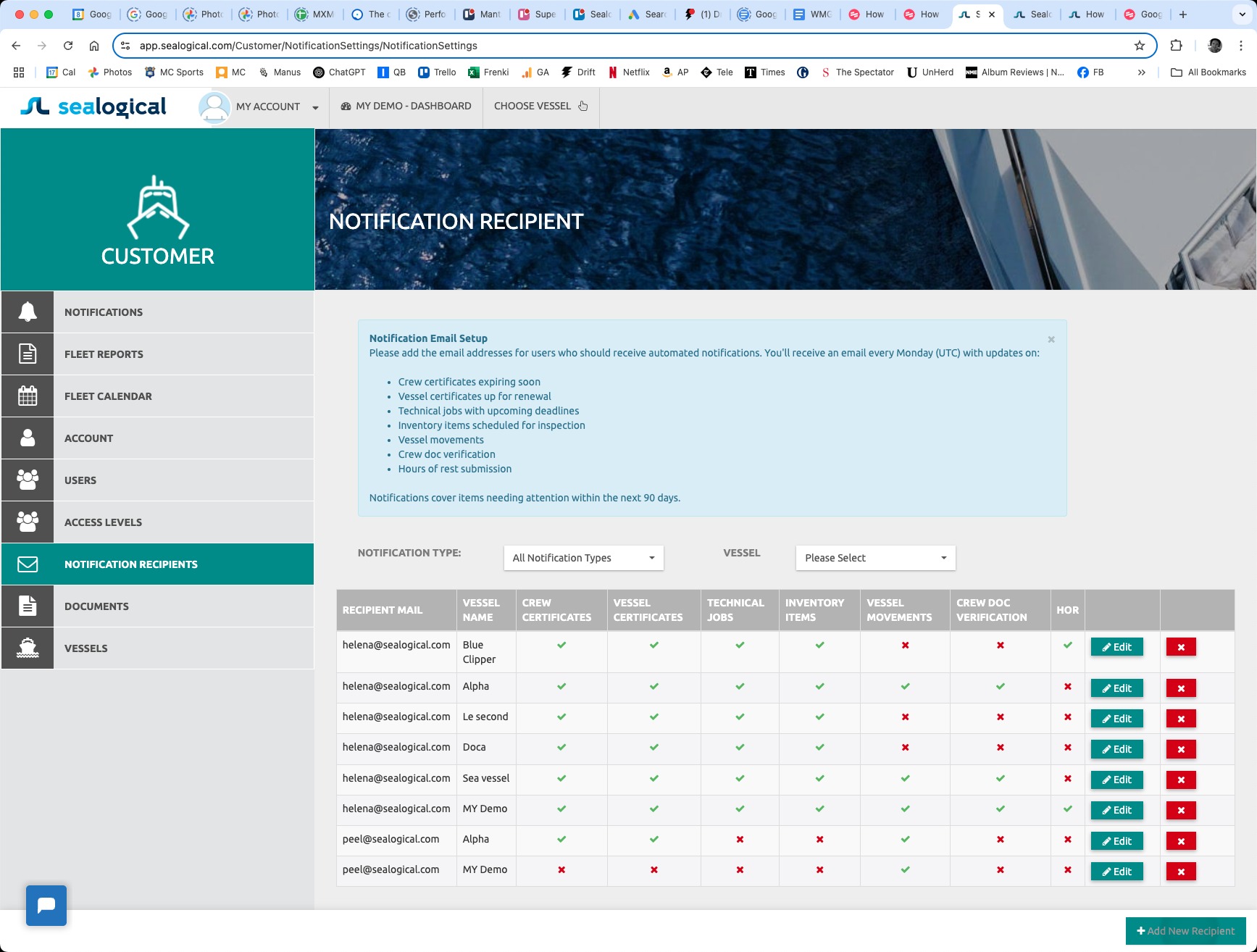
Step 3: Review the existing recipients and click Add New Recipient
The page shows everyone currently subscribed: each row lists the email, the vessel they cover, and a green tick or red cross for each of the seven notification categories. The blue panel at the top recaps what the Monday email contains. Click the green Add New Recipient button at the bottom-right of the page to add someone.
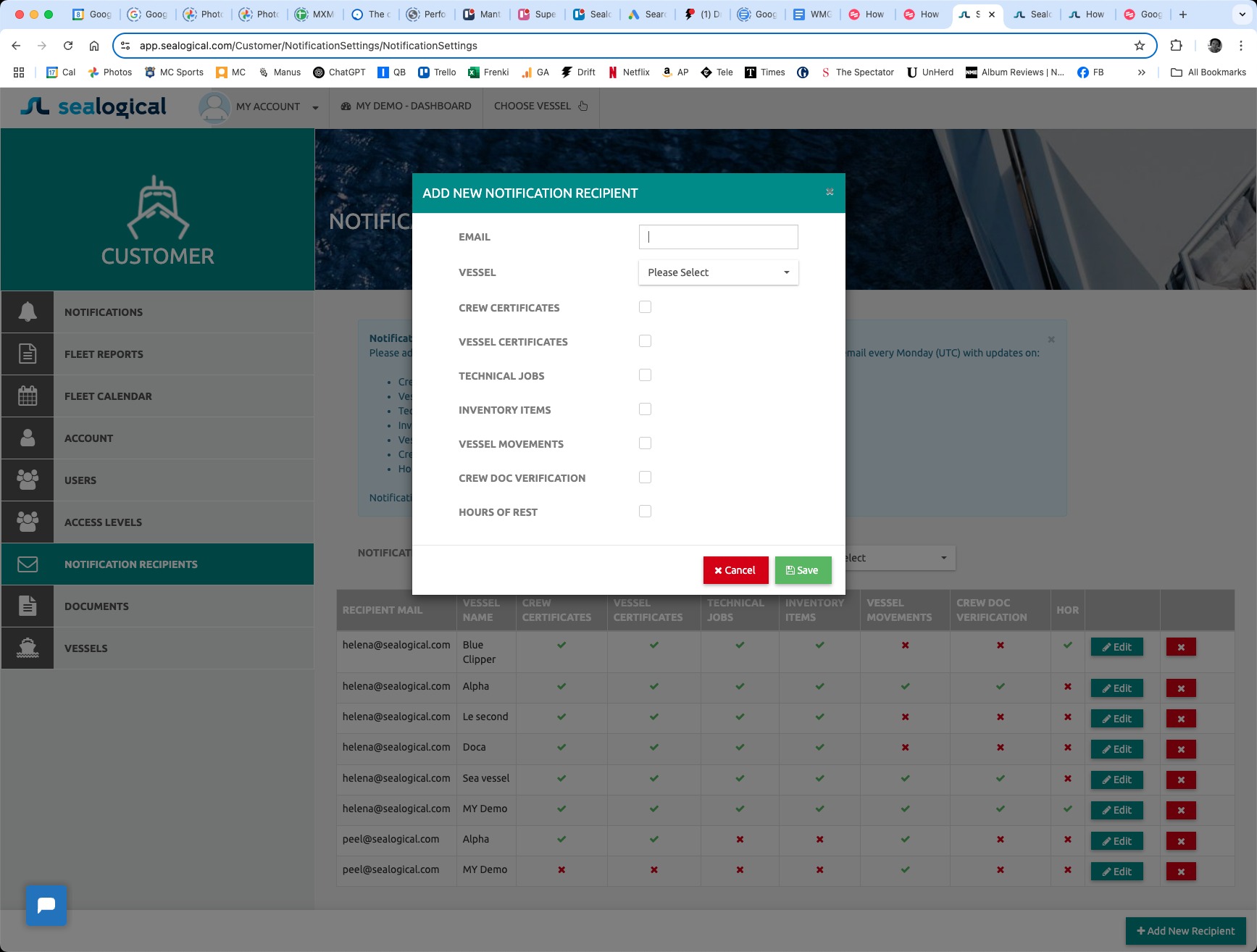
Step 4: Enter the recipient's email
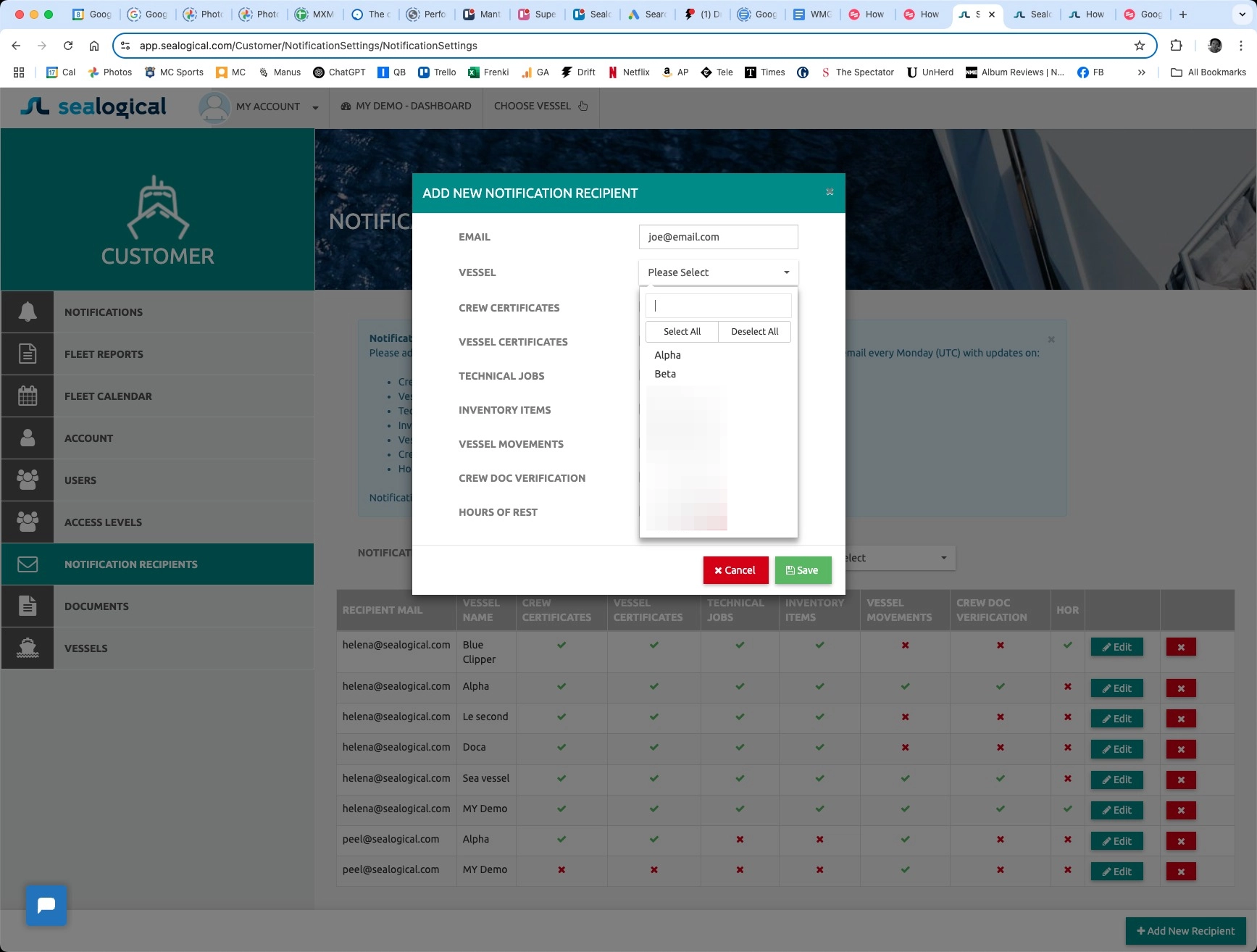
The Add New Notification Recipient modal opens. Type the recipient's email address into the EMAIL field. The recipient does not need a Sealogical login — any email address will work, which is useful for shore-side managers and external stakeholders.
Step 5: Pick the vessels they should follow
Click the VESSEL dropdown to open a searchable list of every vessel on your account. Use the search field at the top, or the Select All / Deselect All buttons, to choose one vessel, several, or the whole fleet. Selecting more than one vessel creates a separate row per vessel in the recipients table — so the same person can have different category settings on different vessels.
Step 6: Tick the notification categories and Save
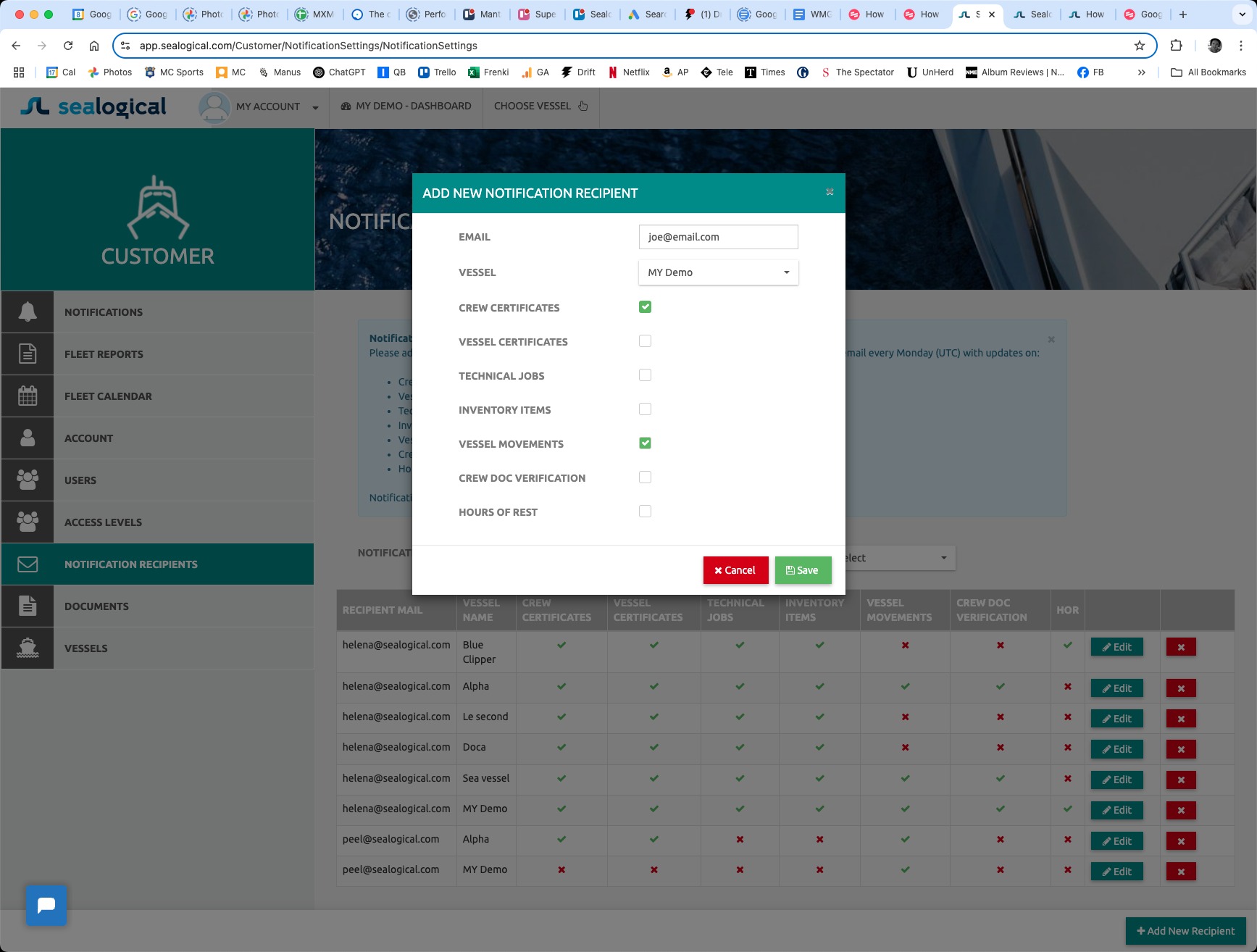
Tick each category the recipient should receive. The seven options match the items listed in the blue panel at the top of the page. Click Save when you're done — the new entry appears in the recipients table immediately and the next Monday digest will include it.
Frequently Asked Questions
How often are notification emails sent?
Once a week. The digest is sent every Monday at 00:00 UTC and covers items needing attention within the next 90 days, so recipients always have time to act before something expires or falls due.
Does the recipient need a Sealogical login?
No. Any email address can be added — recipients do not need to be users of Sealogical. This is useful for shore-side managers, accountants or technical superintendents who only need a heads-up but don't work in the platform day-to-day.
Can I subscribe one person to multiple vessels?
Yes. Use the multi-select on the VESSEL dropdown when creating the recipient, or add the same email separately for each vessel. Each vessel produces its own row in the table, so the categories can differ per vessel — for example a fleet-wide crew manager might receive Crew Certificates on every vessel but Hours of Rest on only a few.
Can I edit which categories someone is subscribed to later?
Yes. Use the Edit button on the right of any row in the recipients table to change the categories at any time. Changes apply from the next Monday digest onwards.
How do I stop someone receiving the digest?
Click the red X button on the right of their row to remove them. They will not appear in any future Monday digest.
~ Need more help?
Still stuck?
If you can't find what you're looking for, our support team is happy to help.
Contact Support