How to Approve Crew Hours of Rest
Review and approve each crew member's Hours of Rest submissions for the month, then export a signed PDF for your MLC compliance records.
BEFORE YOU START
Approval happens per-crew-member, per-month. You need to be set to Admin or Senior Crew on the vessel to approve. Crew submit their daily hours from their own login (web or app), so check that everyone's entries are in before approving — pending submissions show as a greyed-out button on the crew member's card. Once a month is approved, you can re-open it if anything needs to be corrected.
Step 1: Open the Crew Hours of Rest page
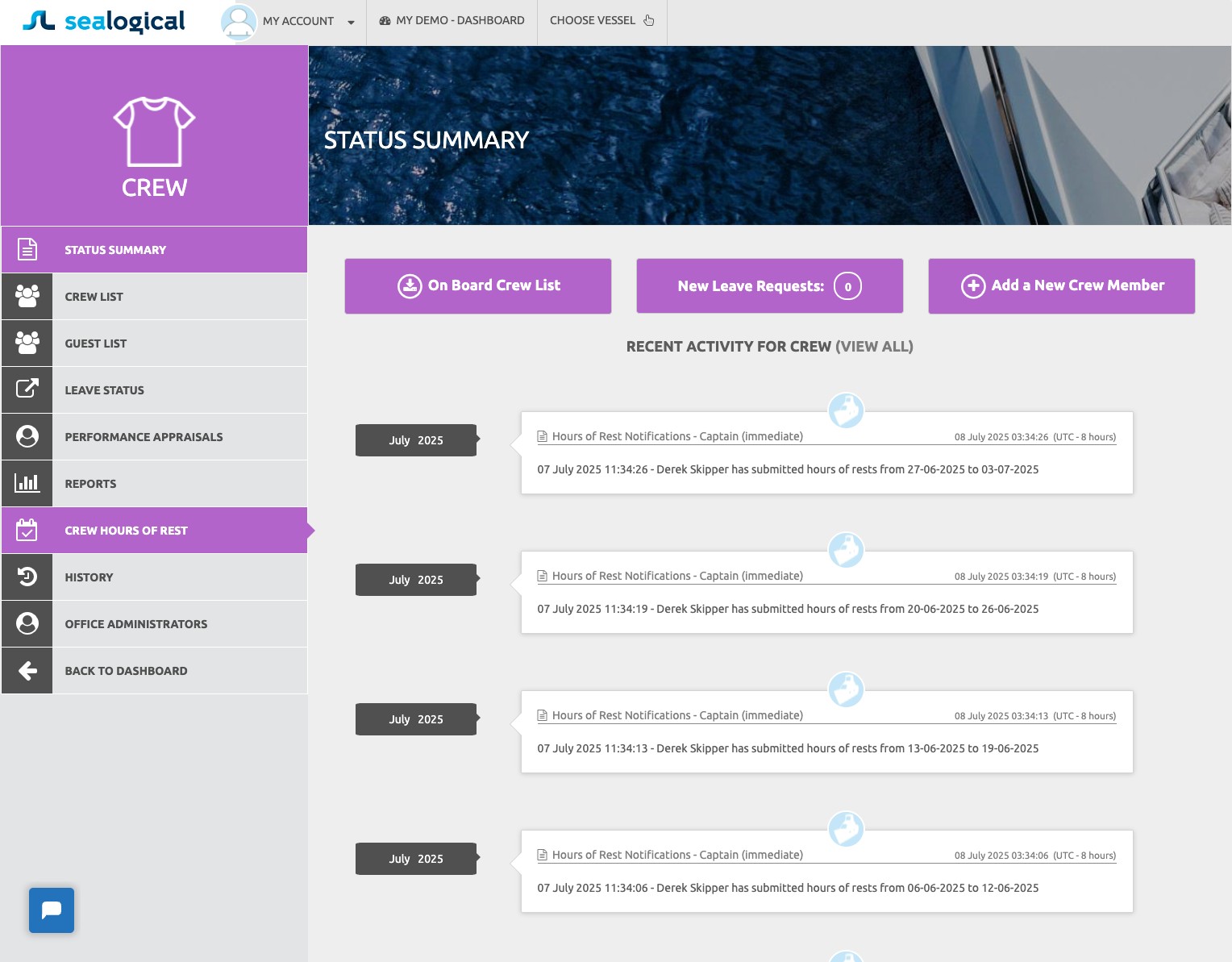
From the vessel dashboard, click the purple CREW tile, then in the Crew sidebar click CREW HOURS OF REST. The page opens on the current month by default.
Step 2: Review the monthly overview
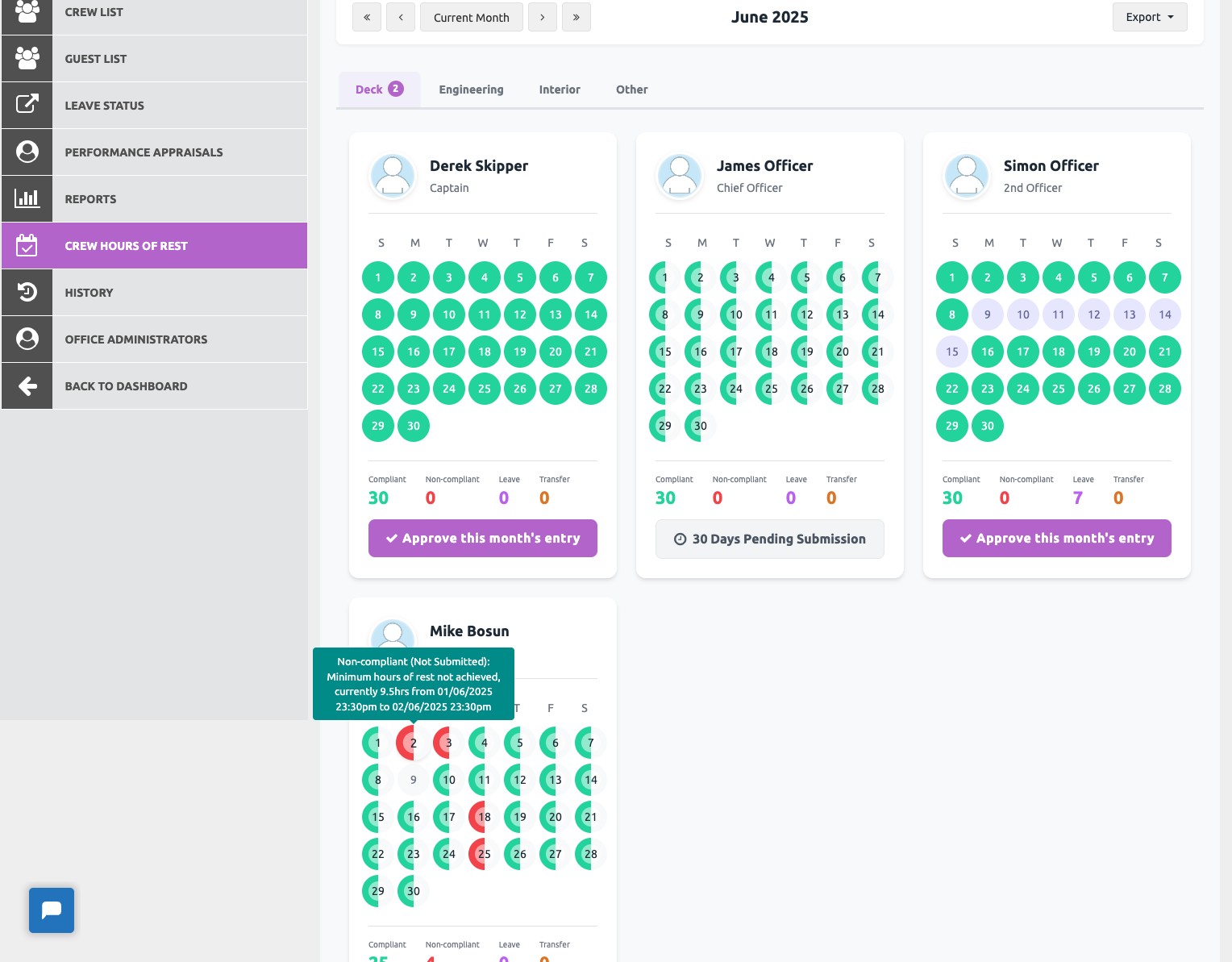
The page shows a calendar card per crew member, grouped by department tab (Deck, Engineering, Interior, Other). Each day on the calendar is coloured by status — green for compliant, red for non-compliant, light purple for leave, light green for transfer. Hover over any day to see a quick reason for the status. Use the arrow buttons or Current Month button at the top to move between months.
Step 3: Click a day for the full breakdown
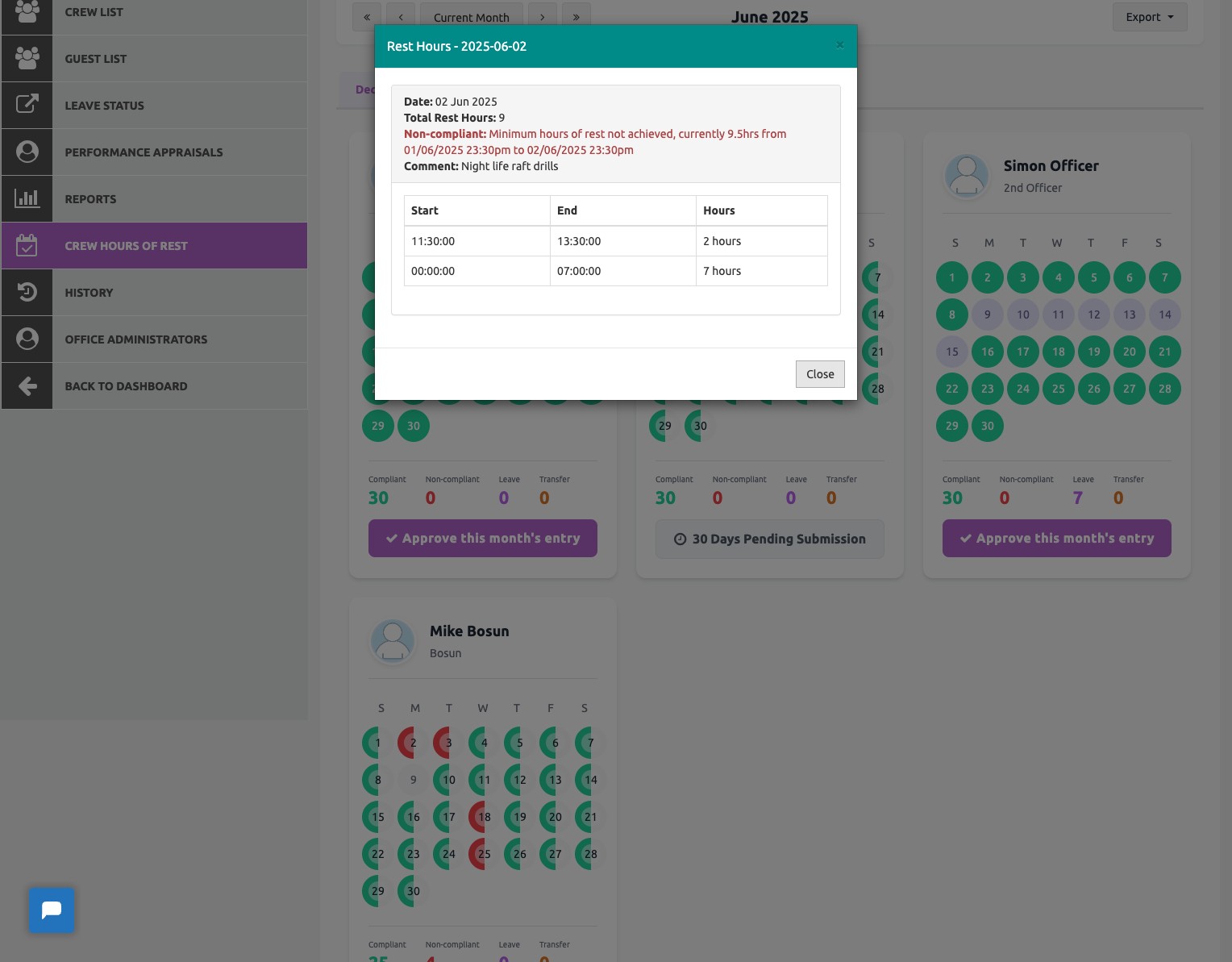
To see exactly why a day was flagged or how a crew member spent their rest, click the date on their calendar. A modal opens with the date, total rest hours, the compliance message and a table of every rest period the crew member logged that day, with start time, end time and duration. The Comment field shows any context the crew member added to the entry, e.g. 'Night life raft drills'.
Step 4: Click Approve this month's entry
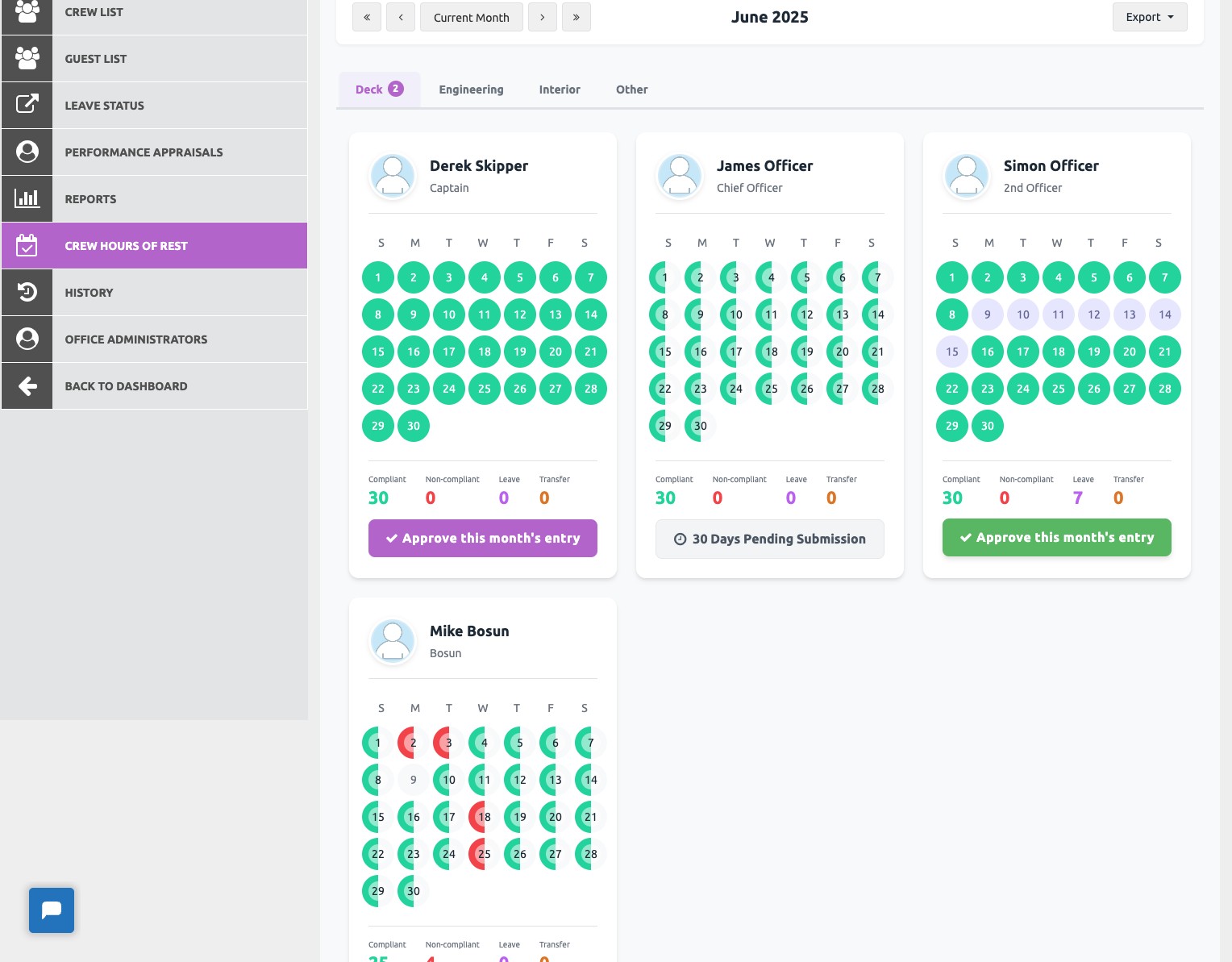
When you're satisfied with the record, click the purple Approve this month's entry button at the bottom of that crew member's card. Note that approval is per-crew-member — you'll repeat this for each member of the crew. If the button shows 'Pending Submission' or 'Pending Entry' instead, the crew member hasn't finished their submissions for the month yet.
Step 5: Confirm the approval
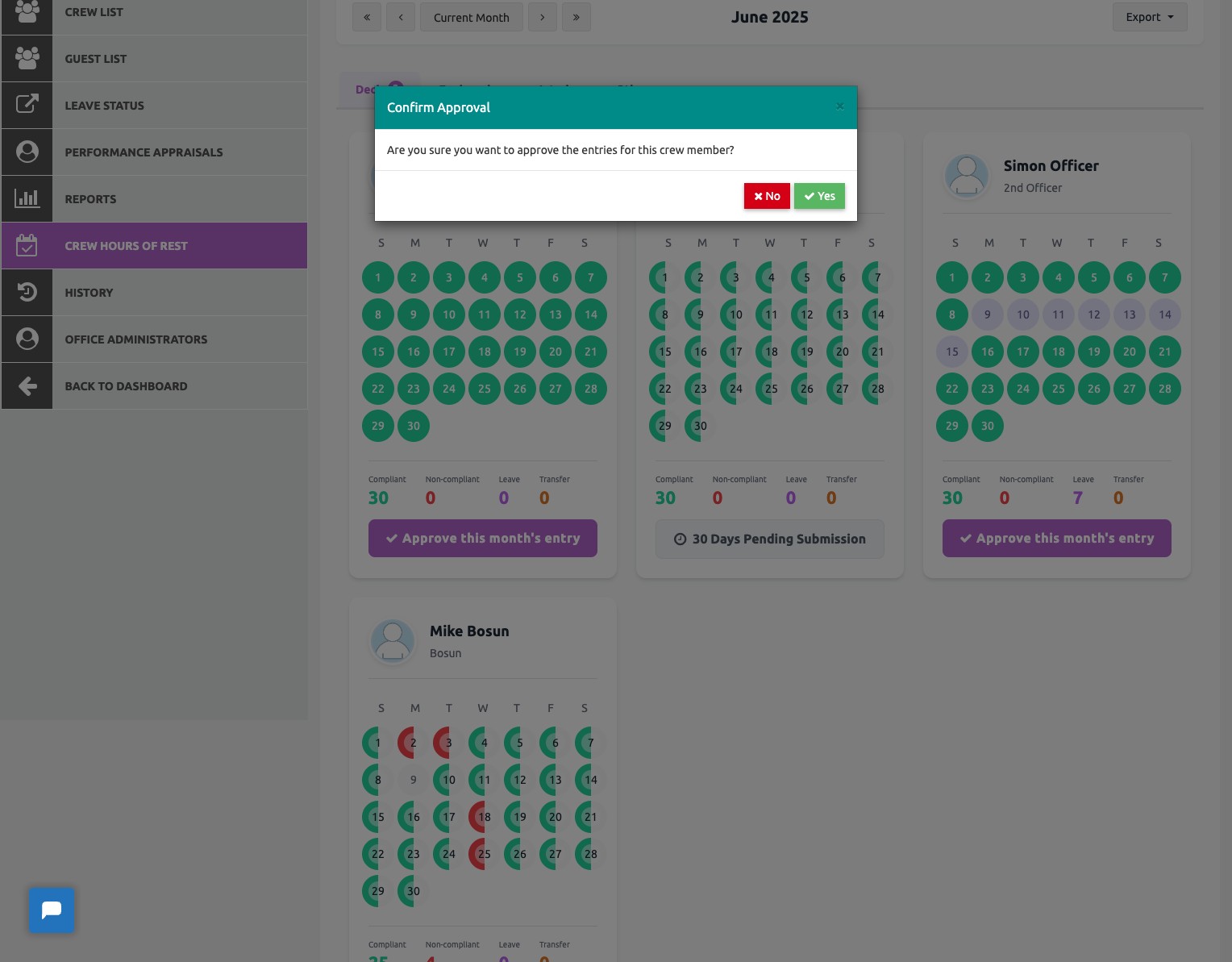
A confirmation dialog asks 'Are you sure you want to approve the entries for this crew member?' Click Yes to lock the month for that crew member. The button on their card changes to Month Approved, with a Reopen option next to it in case you need to undo the approval later.
Step 6: Make sure crew and captain signatures are on file
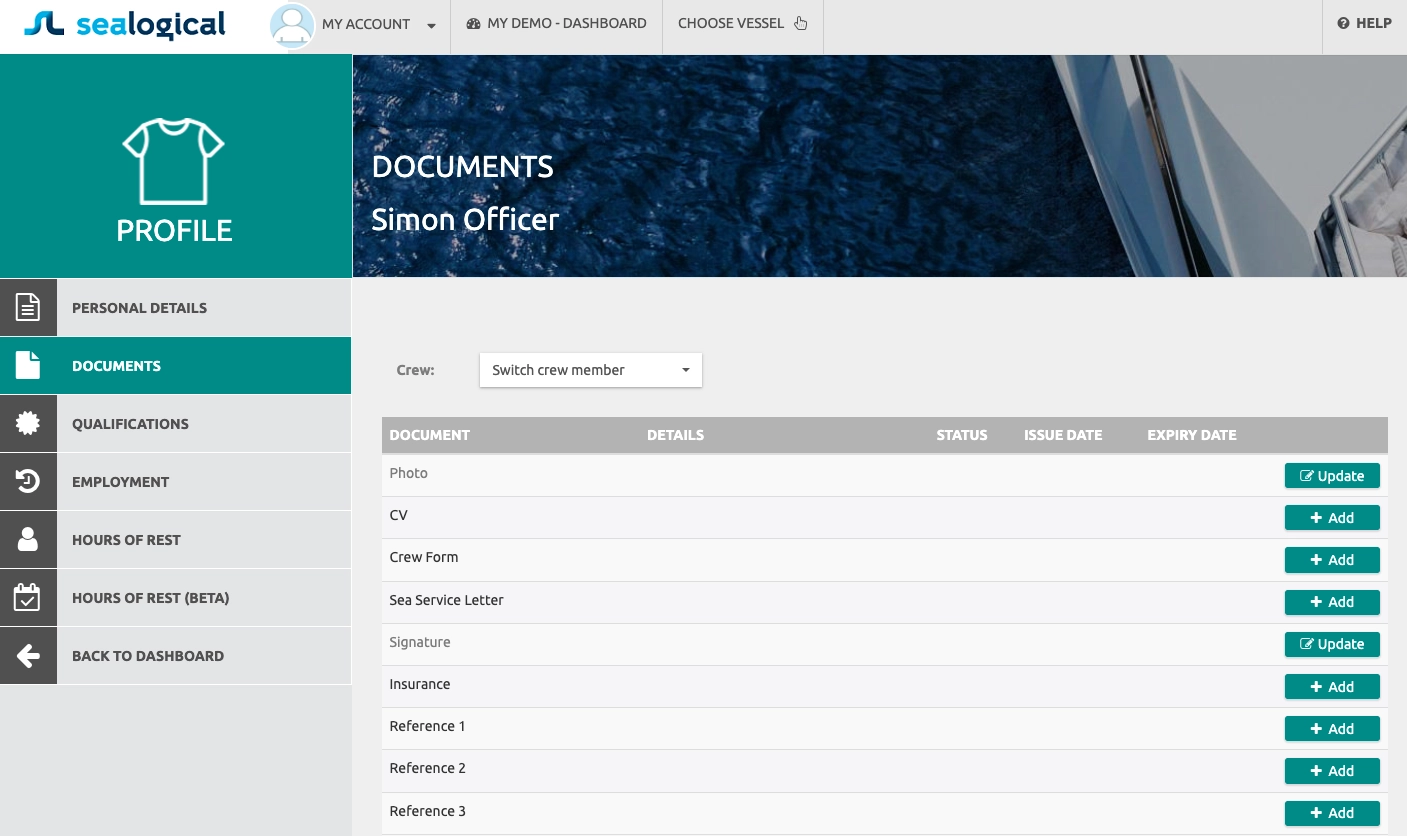
The exported monthly report includes both a crew-member signature and a captain/master signature. These are pulled from each person's profile rather than drawn at approval time, so add or update them in advance. Open the crew member's profile, click DOCUMENTS in the sidebar, and use the Update button on the Signature row to upload or replace the image. Repeat for the approving officer.
Step 7: Export the approved report
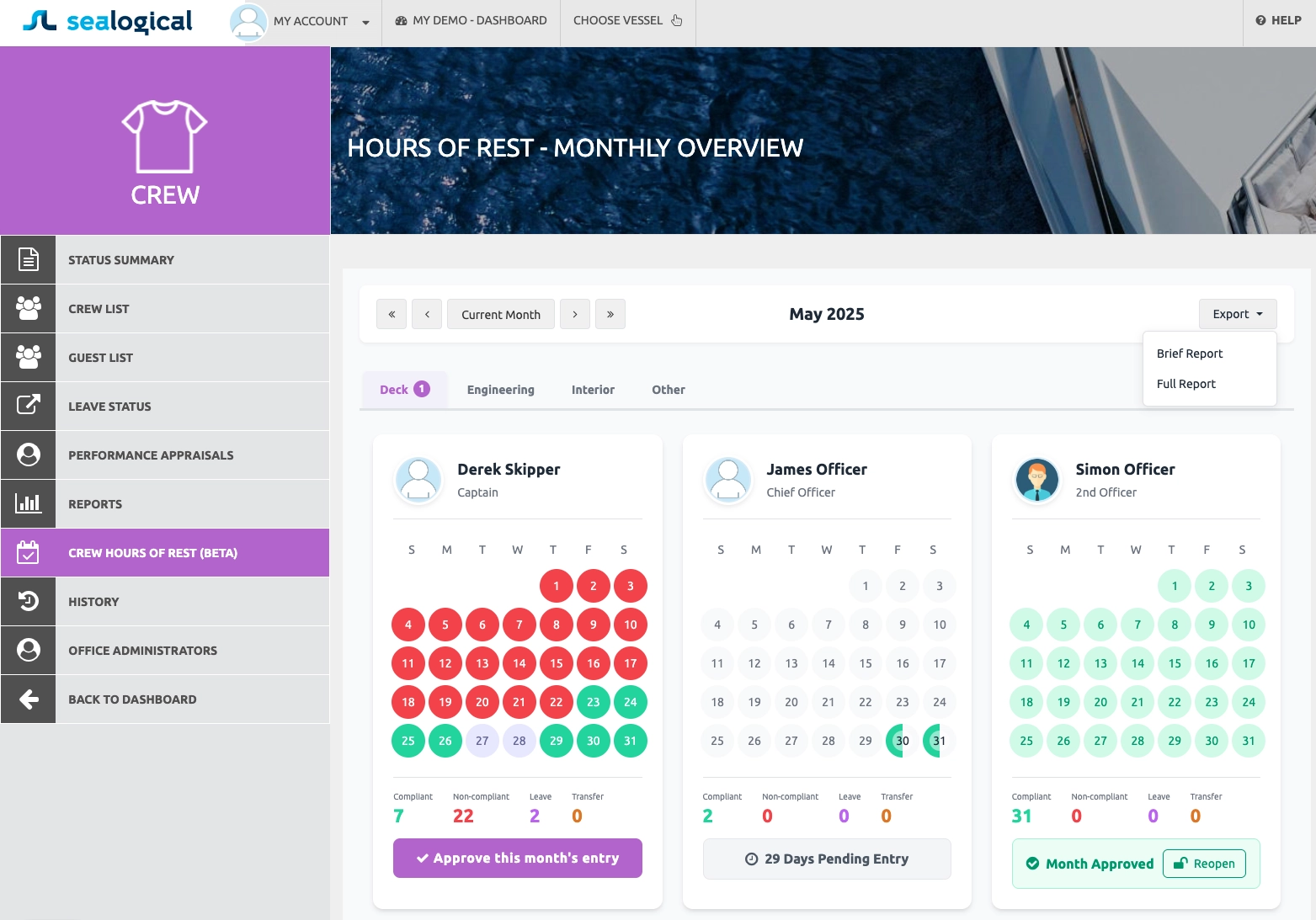
Back on the Hours of Rest page, click the Export button in the top-right of the calendar header. Two formats are available: Brief Report and Full Report. Pick the one your auditor or compliance partner expects — both include the signed approval block at the bottom.
Step 8: The exported PDF includes both signatures
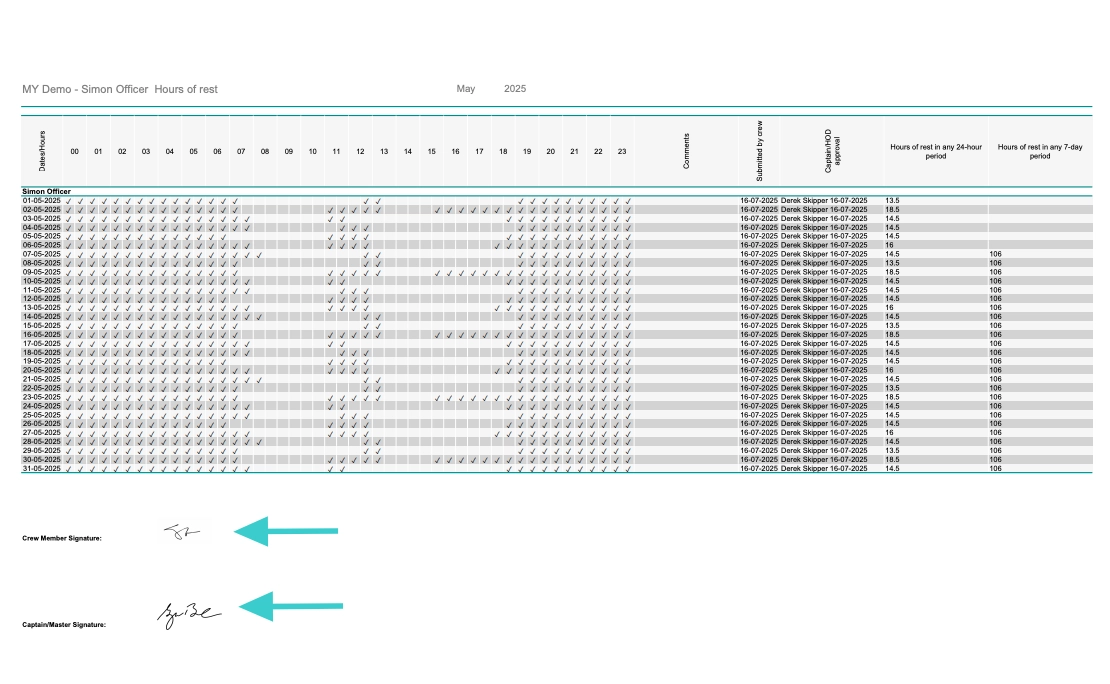
The PDF lays out every day of the month with a row per date and an hour-by-hour rest breakdown across columns. The right-hand columns show the date the entries were submitted by the crew, the date they were approved by the captain, and the running totals for hours of rest in any 24-hour and 7-day period. At the bottom you'll find the crew member's signature and the captain's signature side by side, taken from the profiles set up in the previous step.
Frequently Asked Questions
Who can approve Hours of Rest entries?
Anyone set to Admin or Senior Crew level on the vessel can approve Hours of Rest. In practice the Captain or Master typically approves their own crew at the end of each month, but anyone with the appropriate Access Level can do it. Crew and Junior Crew levels cannot approve.
What do the colours on the calendar mean?
Each day on a crew member's calendar is coloured by status. Green is compliant — the rest minimum was met. Red is non-compliant — the crew member did not get the minimum required hours of rest. Light purple is leave, and a light green indicates a transfer day. The bottom of each card shows the running totals: Compliant, Non-compliant, Leave and Transfer days for the month.
Can I approve a month that contains non-compliant days?
Yes. The Approve this month's entry button is available regardless of how many non-compliant days the crew has — the goal of approval is to confirm the record is accurate, not to suppress non-compliance. Non-compliant days remain on the record after approval and feed into your MLC reporting.
Can I unapprove a month after I've approved it?
Yes. After approval the button changes to Month Approved with a Reopen action next to it. Reopening returns the month to a pending state so the crew member can amend their entries or you can review again.
Why does a crew member's calendar show Pending Submission?
A pending status means the crew member hasn't submitted their entries for the period yet. Hours of Rest are entered by each crew member from their own login (web or app); the office cannot enter hours on their behalf. Chase the crew member to complete their submission before approval can happen.
Where do the signatures on the exported PDF come from?
Each signature is taken from the relevant crew member's profile under Profile > Documents > Signature. The crew member's signature appears at the bottom of their report, and the approving officer's signature appears in the Captain/Master line. If a signature is missing, that line of the PDF will be blank — update the Signature row on the relevant profile and re-export.
~ Need more help?
Still stuck?
If you can't find what you're looking for, our support team is happy to help.
Contact Support