How to Add Hours of Rest
Log your daily hours of rest from your phone in seconds, then submit the month at the end for your captain's approval.
THE ROUTINE
Hours of Rest is designed to be a 10-second job at the end of each day. You log your day from your phone, the page predicts your usual pattern so most days are a single tap, and at the end of the month you submit the lot for the captain to approve. The page checks every day against the MLC 10-hour minimum and flags any non-compliance — you can still save a non-compliant day; the captain will see it during approval.
Step 1: Visit app.sealogical.com on your mobile
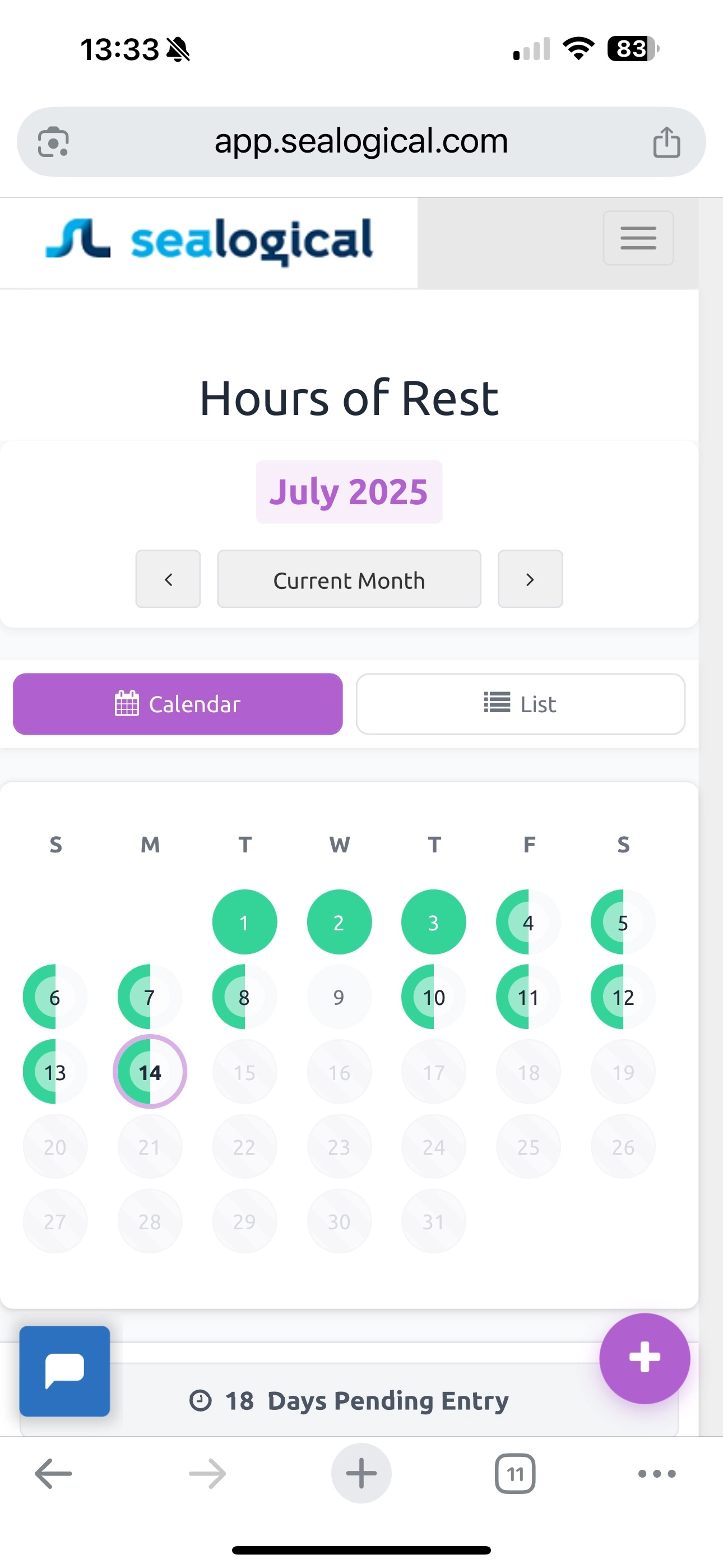
Open app.sealogical.com in your phone's browser (Safari, Chrome, or any modern browser works) and sign in with your crew login. On entering, you're taken straight to the Hours of Rest calendar — there's no menu to navigate.
Step 2: Select the day you want to log
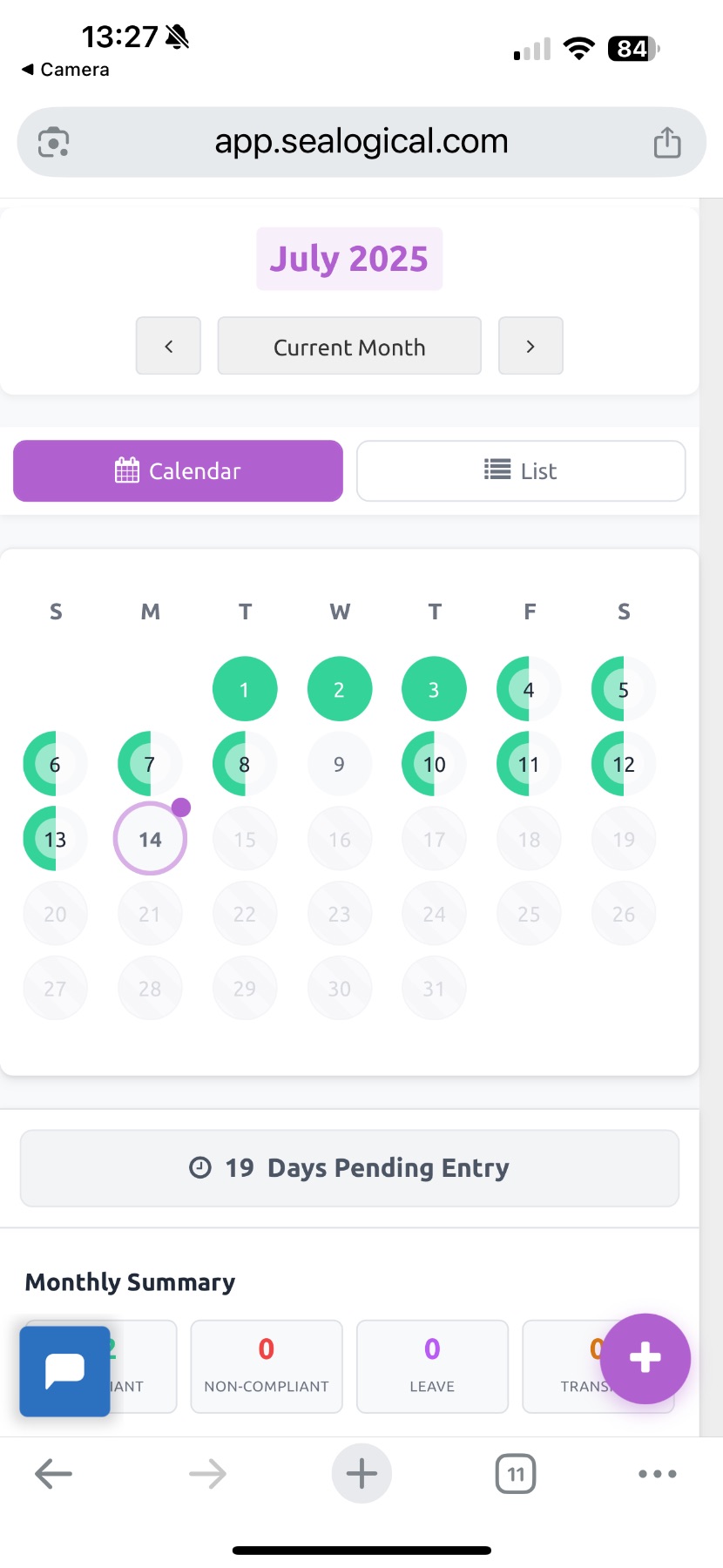
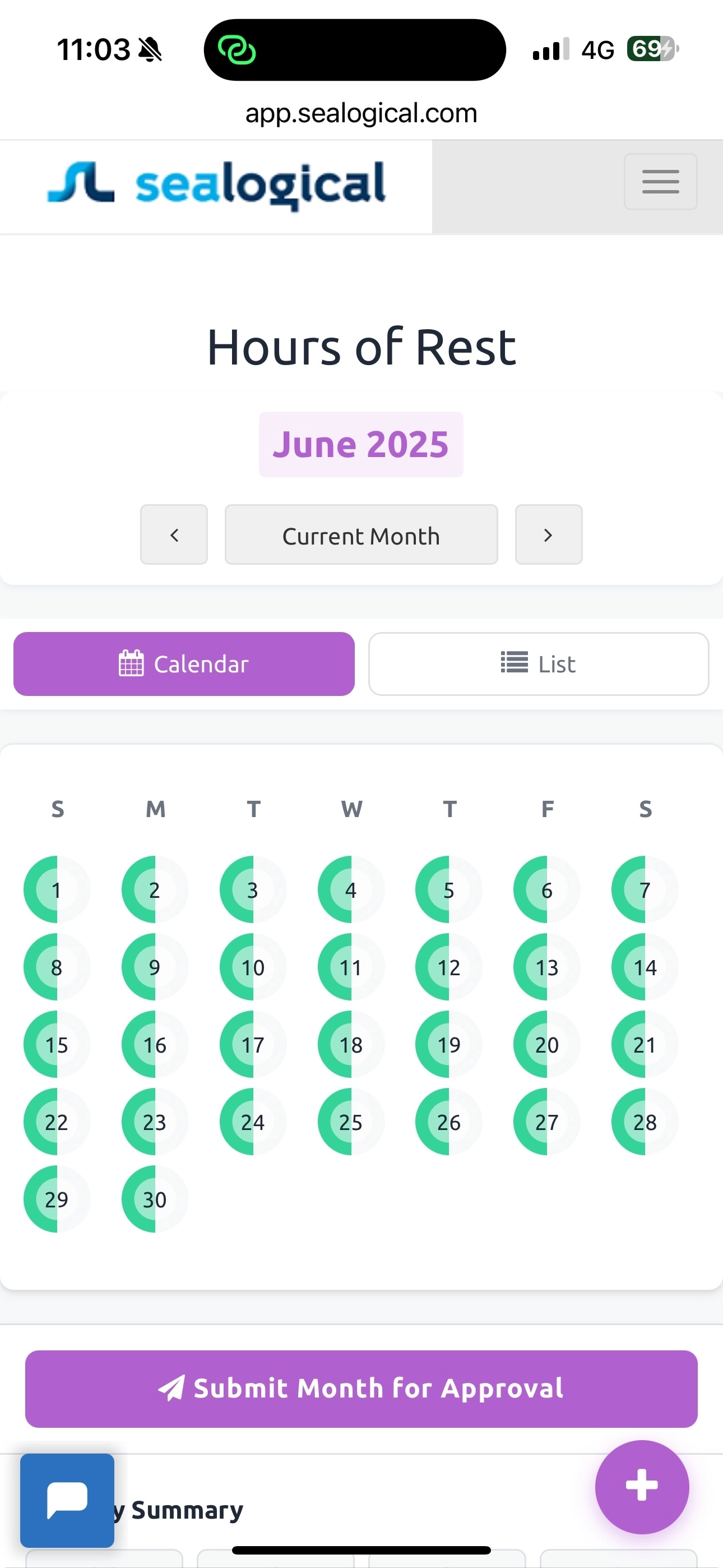
The calendar opens on the current month. Each day shows its status as a coloured circle — fully green when the day's complete, half-green if partial, grey when nothing is logged yet. Tap the day you want to enter rest for. (Past days in the open month can be backfilled, so don't worry if you've fallen behind.)
Step 3: Pick a quick entry option
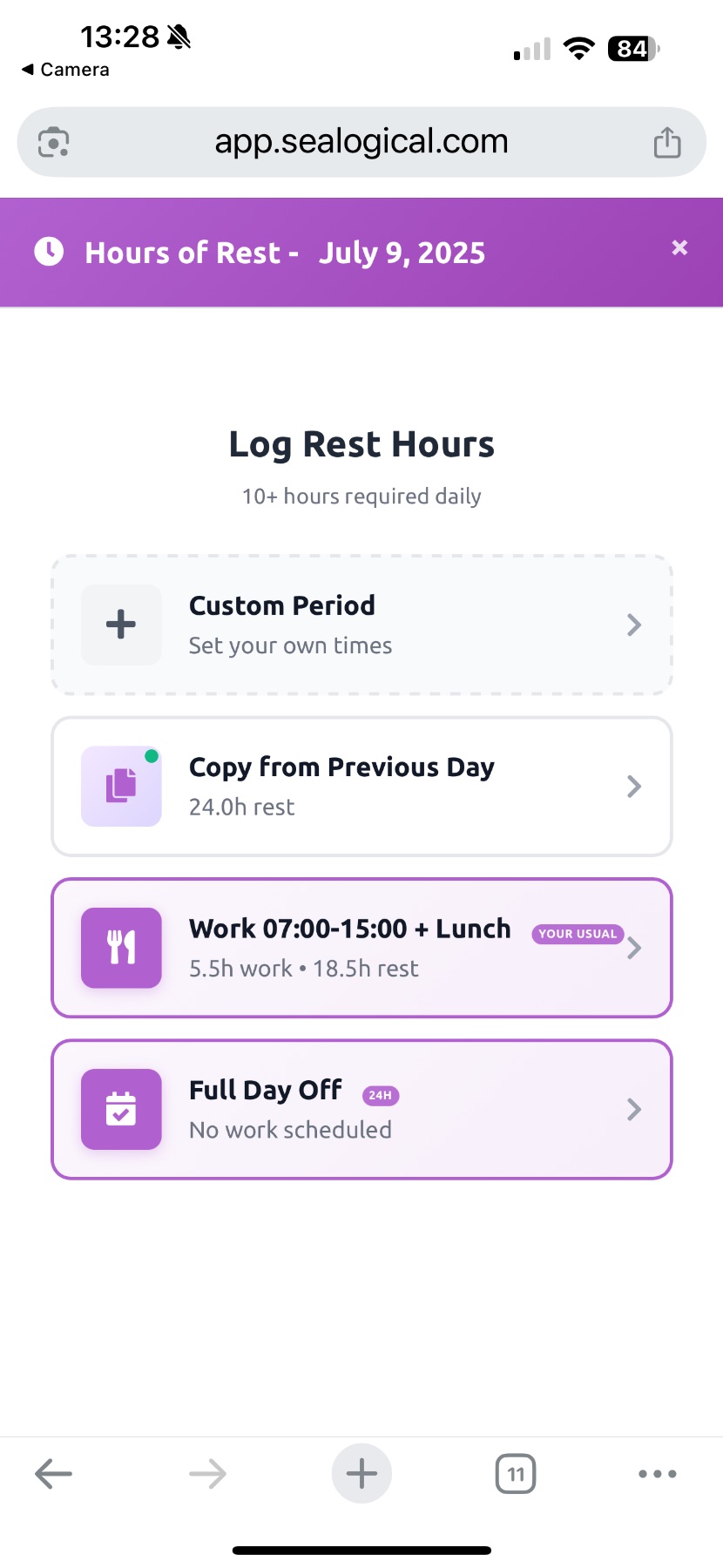
When you tap a day, the Log Rest Hours screen offers one-tap shortcuts. Common options include Copy from Previous Day (copies yesterday's entry exactly), Your Usual (your most common pattern, learned from previous entries — for example Work 07:00-15:00 + Lunch with 18.5h rest), and Full Day Off (logs 24 hours of rest in one tap). Tap the card that matches your day to apply it instantly and skip to step 5.
Step 4: …or set your own times with Custom Period
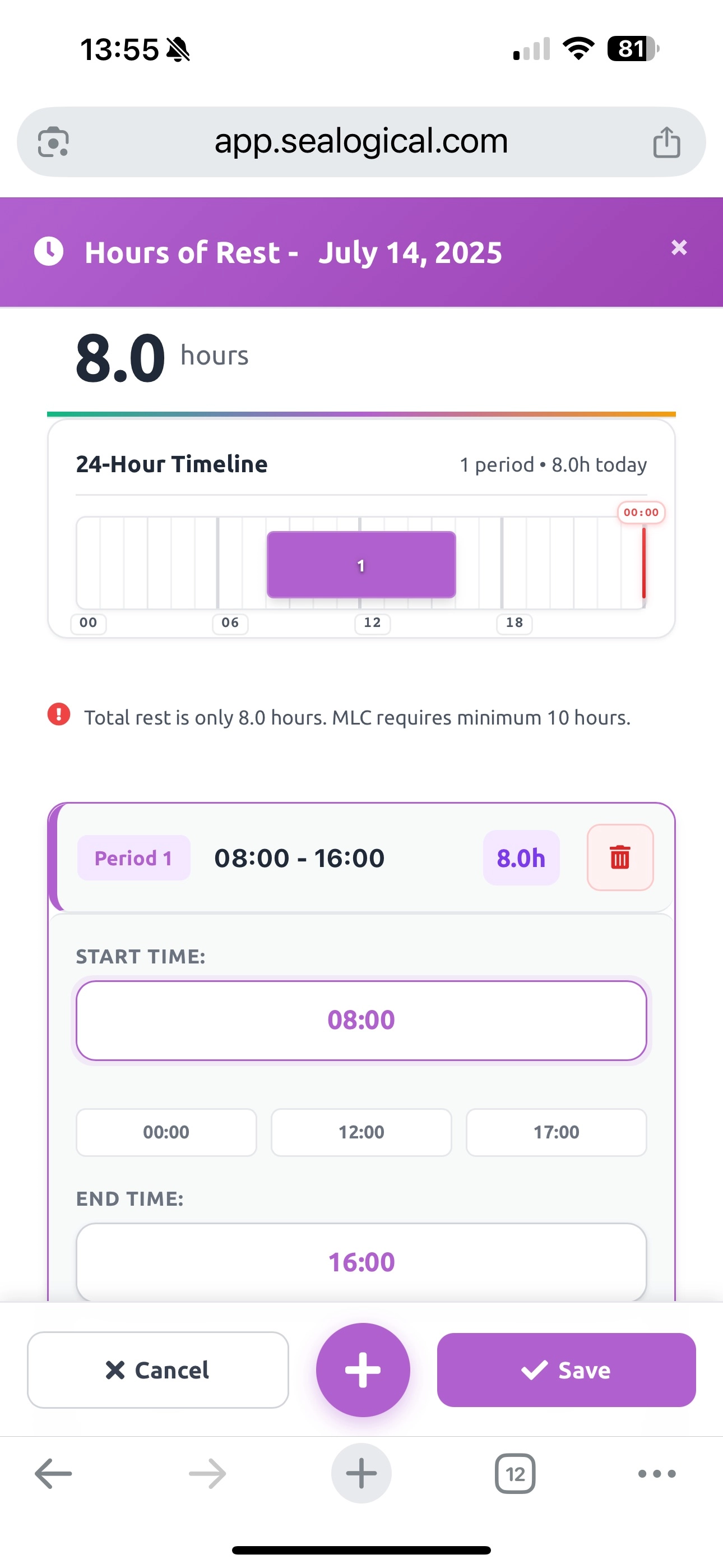
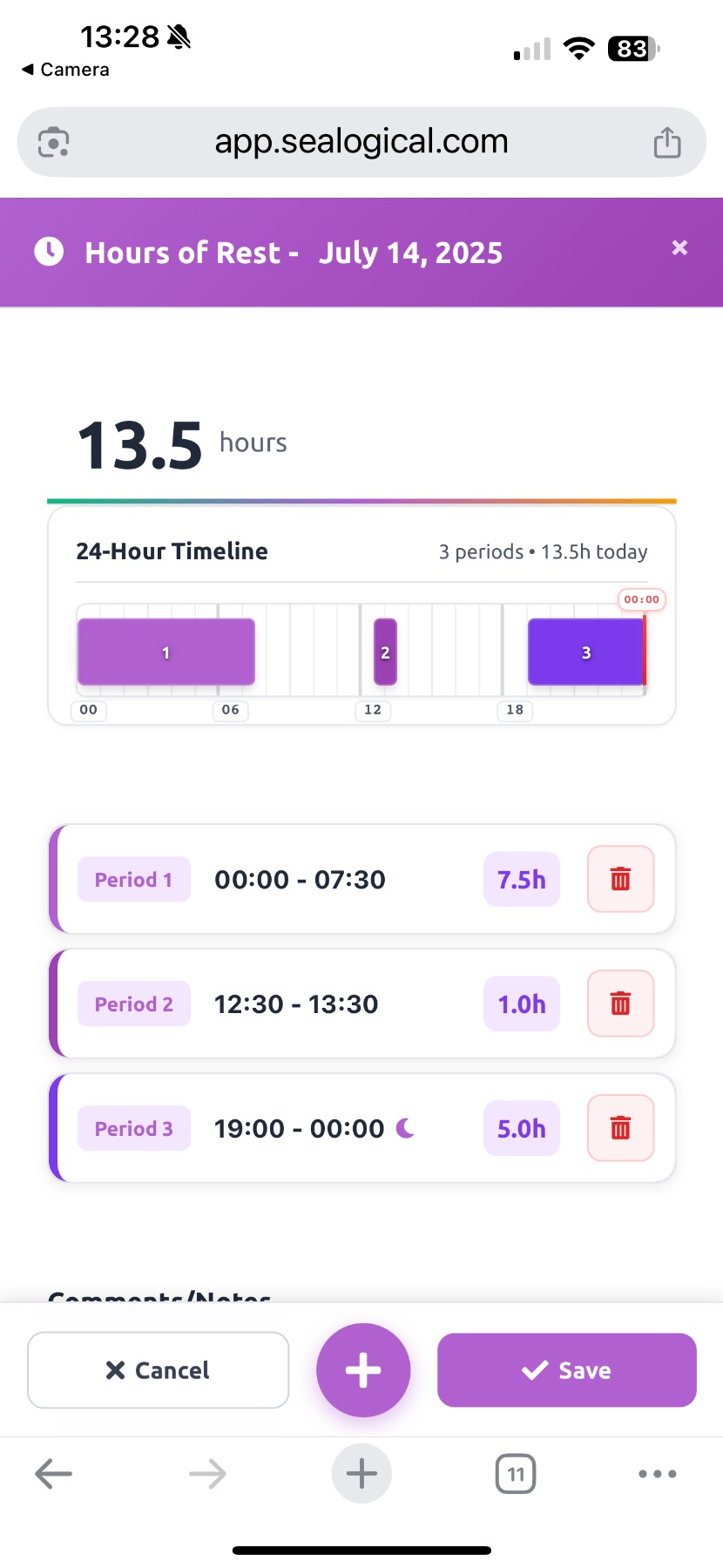
If none of the quick cards fit your day, tap Custom Period at the top of the list. The editor lets you add as many rest periods as you need — for each one, set a START TIME and END TIME, with quick-pick chips (00:00, 12:00, 17:00) to make it fast. Use the + button to add another period; the bin icon removes one. The page totals your rest at the top and warns you in red if you fall below the MLC 10-hour minimum — you can still save, but the day will be flagged as non-compliant.
Step 5: Save the day
Once the timeline at the top reflects your day correctly, tap the purple Save button at the bottom of the screen. The day is saved and you return to the calendar — the day's circle updates to show your entry is recorded.
Step 6: Submit the month for approval
At the end of the month — once every day has an entry and the Days Pending Entry counter reaches zero — the Submit Month for Approval button activates at the bottom of the calendar. Tap it to send the whole month to the captain for approval. The captain reviews each day and approves the month, after which it's locked into your MLC compliance record.
Frequently Asked Questions
Do I need to install an app?
No. Sealogical is a mobile web app — open app.sealogical.com in any modern browser (Safari, Chrome, etc) on your phone and sign in. You can save the page to your home screen if you want a quicker way back to it.
What's the MLC minimum I need to hit each day?
Under MLC 2006, seafarers must have a minimum of 10 hours of rest in any 24-hour period. The 10 hours can be split into a maximum of two periods, one of which must be at least 6 hours long. The Sealogical entry page warns you in red if your day's total comes out below 10 hours, but it still saves the entry — non-compliance is recorded for the captain to review.
What does Your Usual mean?
Sealogical learns the patterns you enter most often and offers them as one-tap options. The Your Usual card shows your most common rest pattern (for example, Work 07:00-15:00 + Lunch with 18.5h rest), so an average day takes a single tap to log.
I missed a day — can I add it later?
Yes. Open the calendar, tap the day in the past you want to log, and add the entry. You can backfill any day in the open month. Once the month has been submitted and approved by the captain, the days are locked and need to be re-opened by the captain to be amended.
Can I edit a day after I've saved it?
Yes, as long as the month hasn't been submitted and approved yet. Tap the day on the calendar, change your entries (delete a period with the bin icon, add a new one with the + button), and tap Save again. The day's status indicator on the calendar updates to reflect the change.
When does the Submit Month for Approval button activate?
When every day in the month has at least one rest entry — i.e. when the Days Pending Entry counter at the bottom of the calendar reaches zero. Once active, tap it to send the whole month to the captain for approval. After submission the captain reviews and approves; if anything needs amending the captain can re-open the month.
~ Need more help?
Still stuck?
If you can't find what you're looking for, our support team is happy to help.
Contact Support